

Dashlane is a well-known password manager that offers a good mix of high-quality security and an intuitive user experience.
- How to set up and use Dashlane
- 1. Decide on a Dashlane subscription
- 2. Set up the web app and the browser extension
- 3. Using Dashlane and saving your first password
- More about Cloud Security
- Dashlane frequently asked questions (FAQs)
- Is Dashlane no longer free?
- What operating systems does Dashlane support?
- How do I move passwords to Dashlane?
- Does Dashlane sync between devices?
- What we think of Dashlane
In this article, we walk you through how to set up and use Dashlane and answer some frequently asked questions about the zero-knowledge password manager.
Patrocinado por TecnoArtesanos ¿Tu empresa ya está usando IA? Automatizamos procesos, integramos asistentes inteligentes y conectamos tus sistemas. Descubre cómo →
How to set up and use Dashlane
1. Decide on a Dashlane subscription
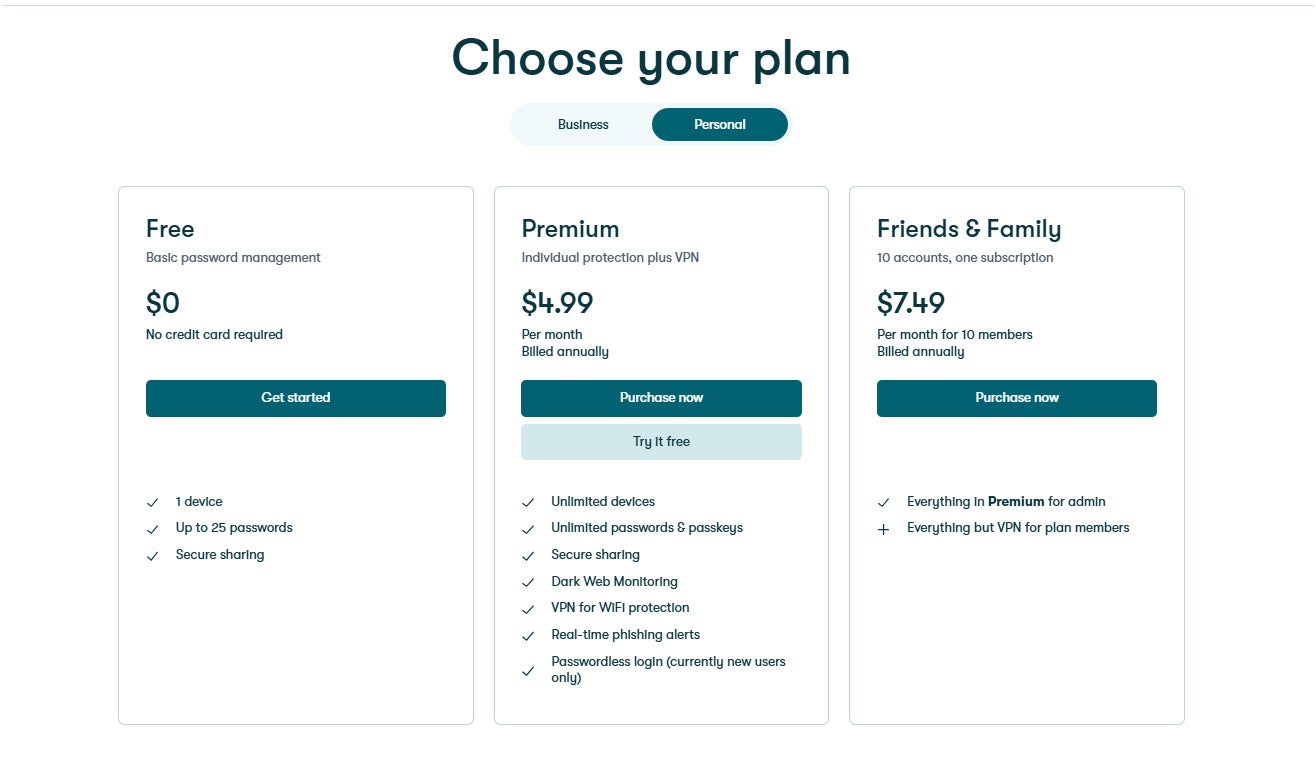
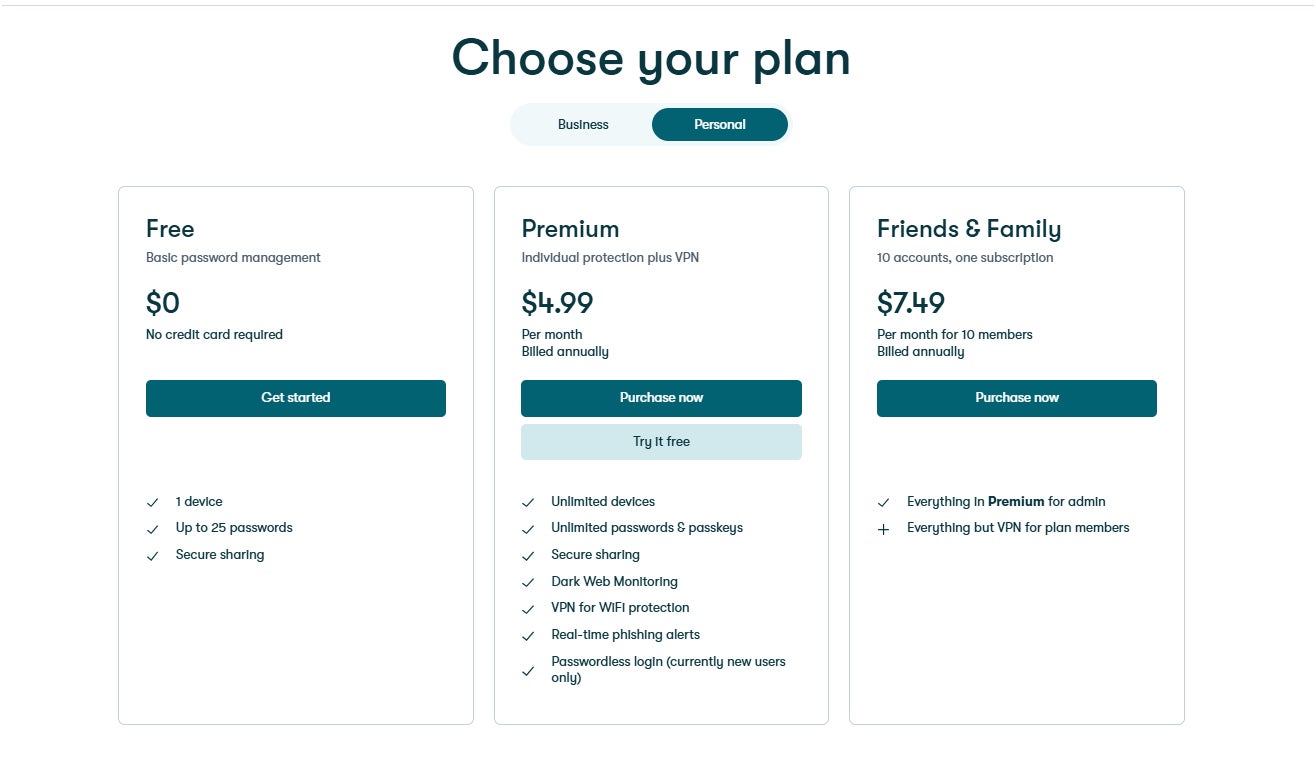
Dashlane offers two subscription tiers: Personal and Business plans. Under Personal, you have the option for Dashlane’s Free plan, Individual Premium plan for one user, and a Friends and Family plan that covers 10 users.
In our hands-on review, Dashlane earned a rating of 4.6 stars out of 5. Check out the full Dashlane review here.
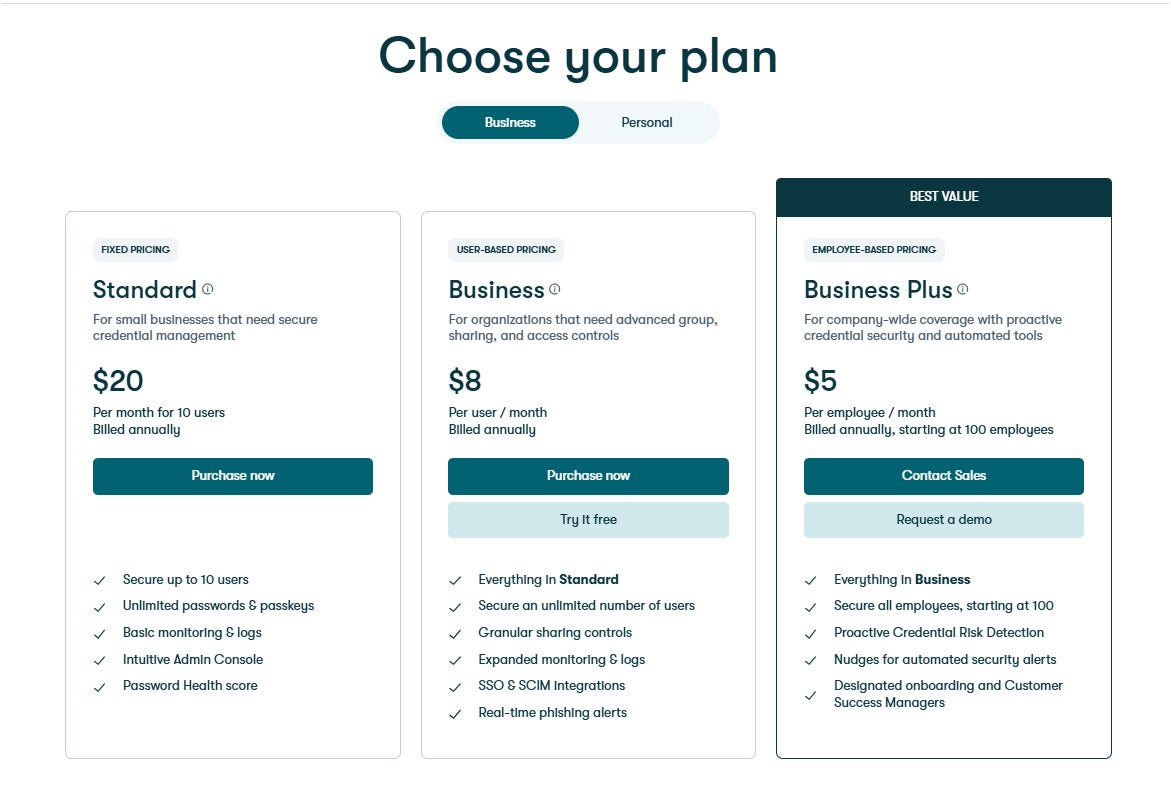
For its Business tier, there’s Standard which covers up to 10 users, a Business plan that covers an unlimited number of users, and a Business Plus subscription that offers employee-based pricing and starts at 100 employees.
I would recommend downloading Dashlane’s Free version first. This lets you try Dashlane’s flavor of password management without paying for an initial subscription or having to hand over any credit information.
Take note, however, that Dashlane’s Free version is very limited. Unlike other free password managers that provide unlimited password storage such as Bitwarden, Dashlane’s free plan only allows a maximum of up to 25 logins stored in the vault. This means their free plan is mainly a vehicle for users to test their password management service and not as a viable, long-term solution.
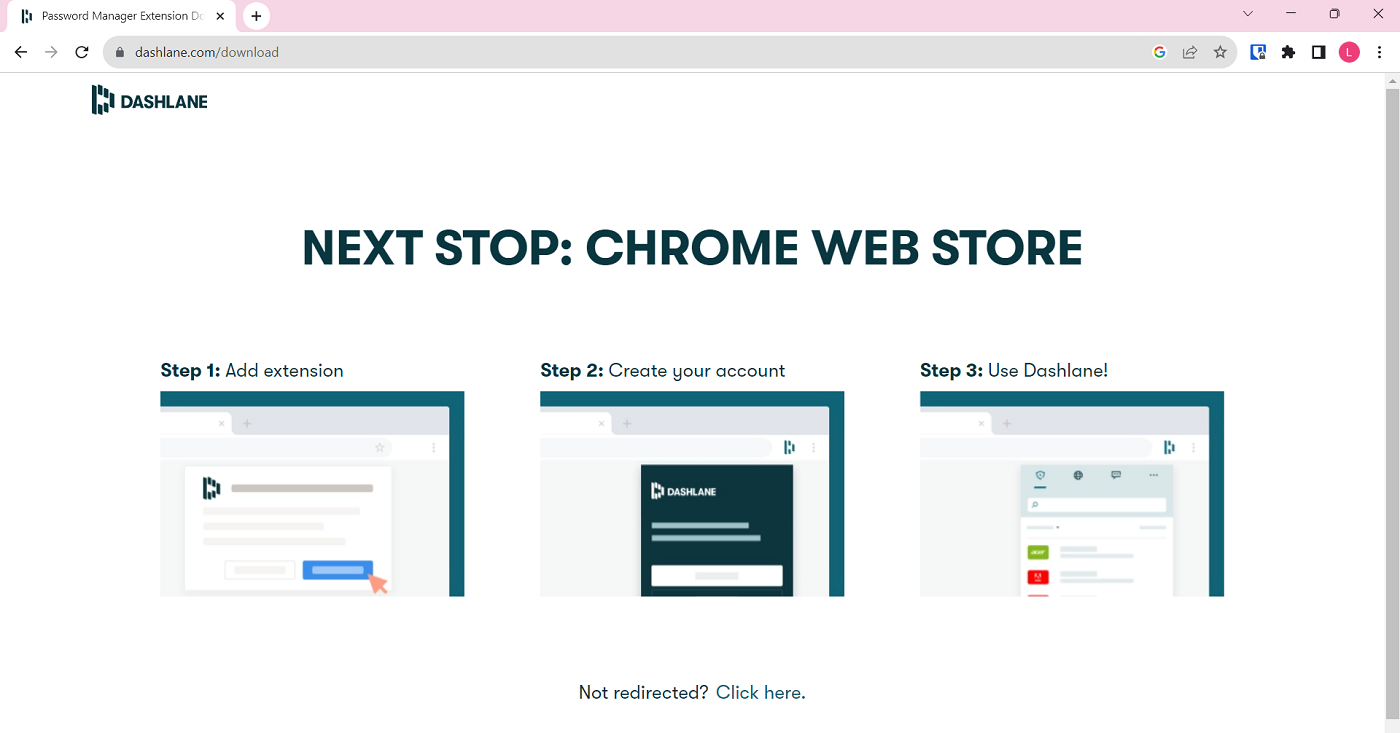
To get Dashlane’s free version, simply select the “Get started” button under the Dashlane Free plan within their subscription page. This will redirect you to an automatic download screen of their official browser extension.
2. Set up the web app and the browser extension
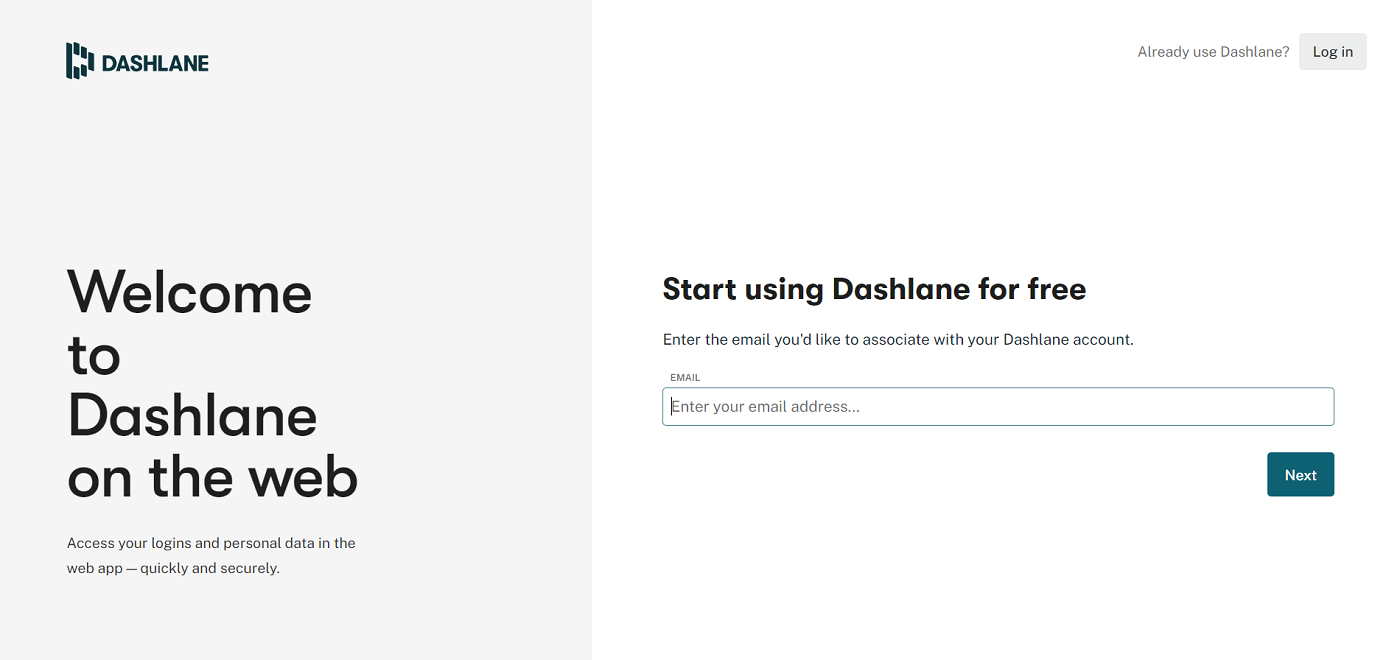
Once the extension is installed on your browser, Dashlane will bring you to its web application and ask for an email to try their service for free.
Afterwards, Dashlane will ask you to provide a master password. Make sure to remember your master password, as this unlocks all the passwords you’ll eventually store in your vault. In theory, this will be the only password you have to make up on your own as Dashlane provides a built-in password generator in their service.
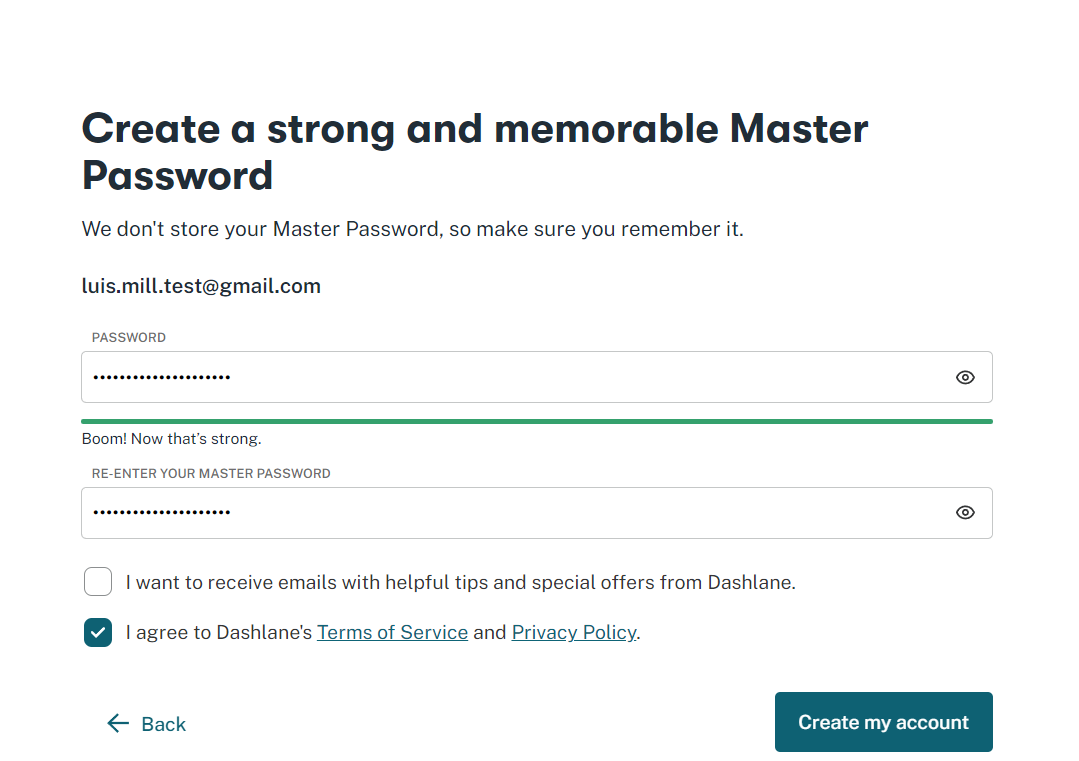
Because Dashlane operates on a zero-knowledge architecture, it doesn’t have access to any of your data — including your master password. If you forgot your master password and weren’t able to set a recovery method, you may need to reset your account.
SEE: Penetration Testing and Scanning Policy (TechRepublic Premium)
3. Using Dashlane and saving your first password
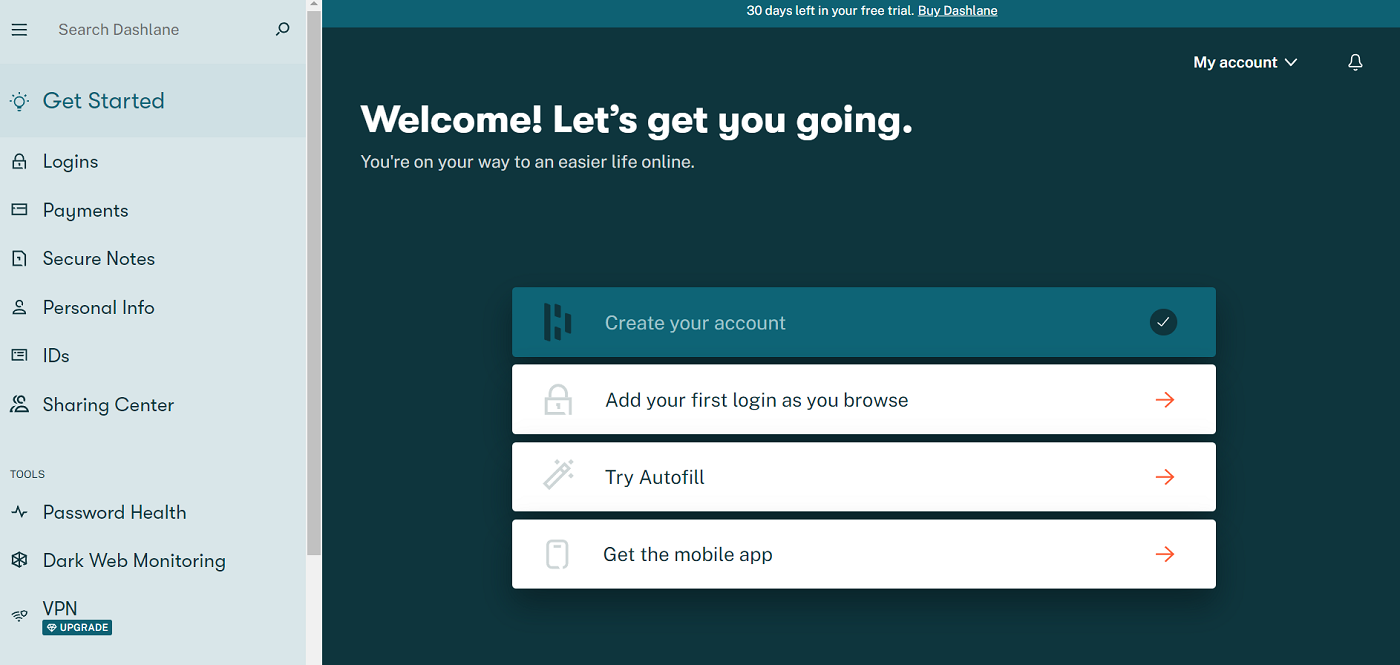
Once you provide your master password, you’ll be directed to the web app’s main dashboard, and you will then officially have your own Dashlane account.
Of course, a password manager’s main purpose is to securely store passwords. While you can create individual logins within Dashlane, the more traditional way to use a password manager is by creating and saving a new login.
To illustrate, let’s say we want to sign up and create an account in HubSpot. Once you reach their sign up page, you’ll see that Dashlane’s logo can be found within the email input box.
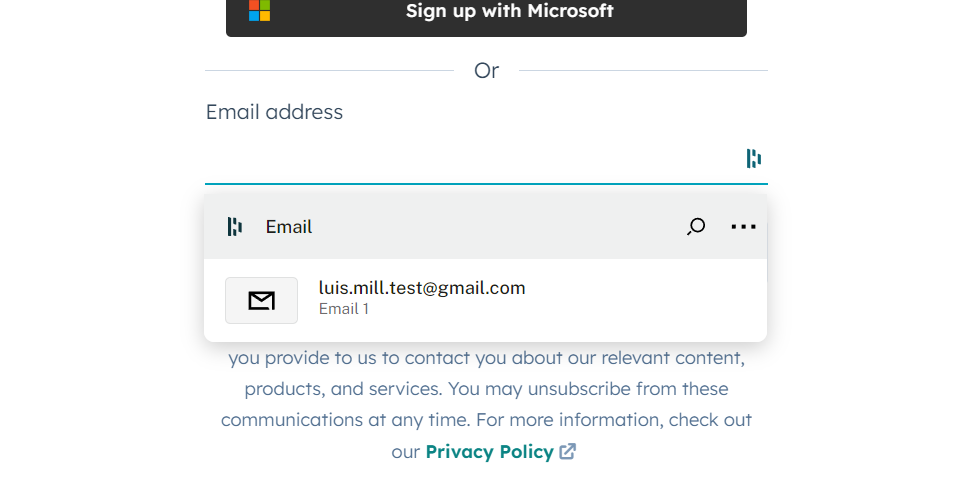
If you click on it, a pop-up window will appear and show the email associated with your Dashlane account.
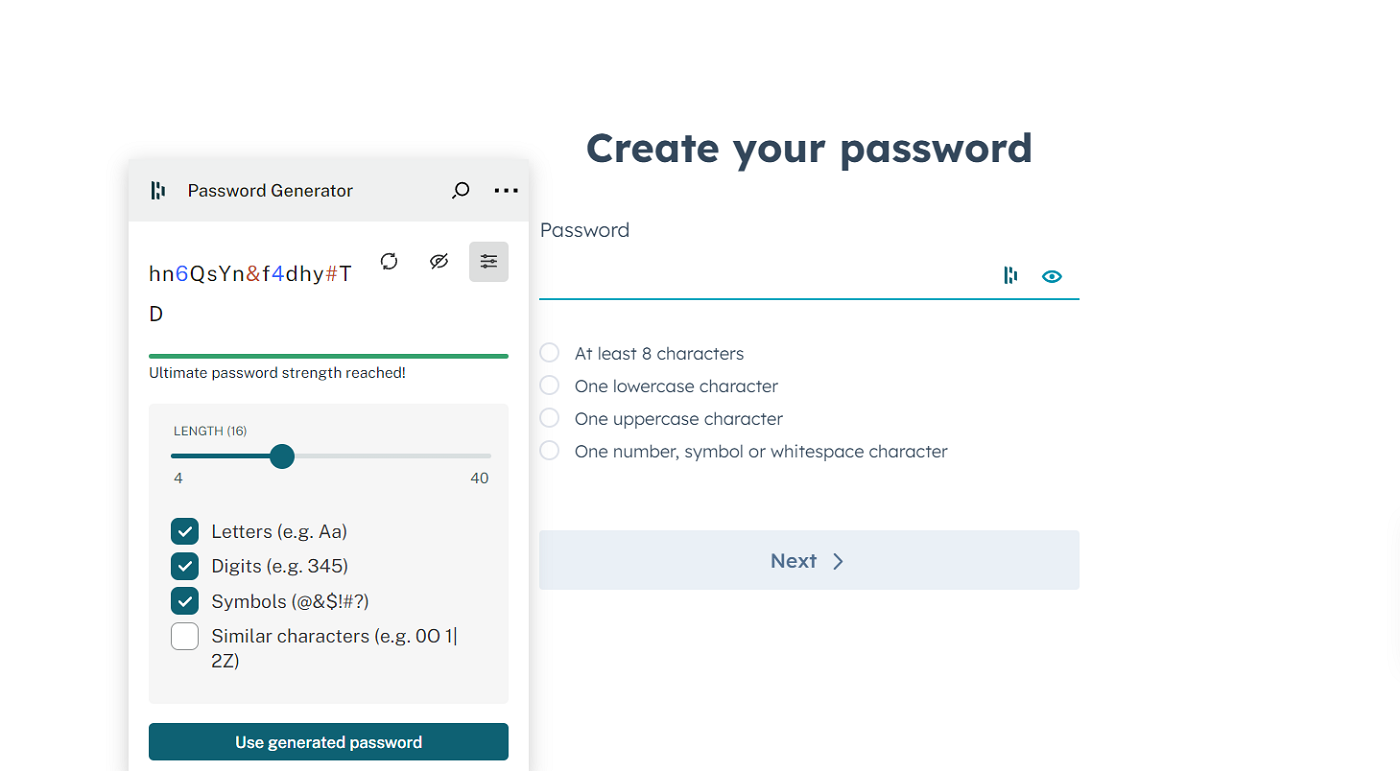
For the password phase, Dashlane automatically generates a random password according to your preferred configurations. You can set it to have a combination of letters, digits, symbols, and set it to generate a password of up to 40 characters. At default, Dashlane generates a password with 16 characters.
After selecting the generated password, you can save it and Dashlane automatically stores it in your password vault alongside your other passwords. This vault holds all your credentials, usernames, passwords, and other login information.
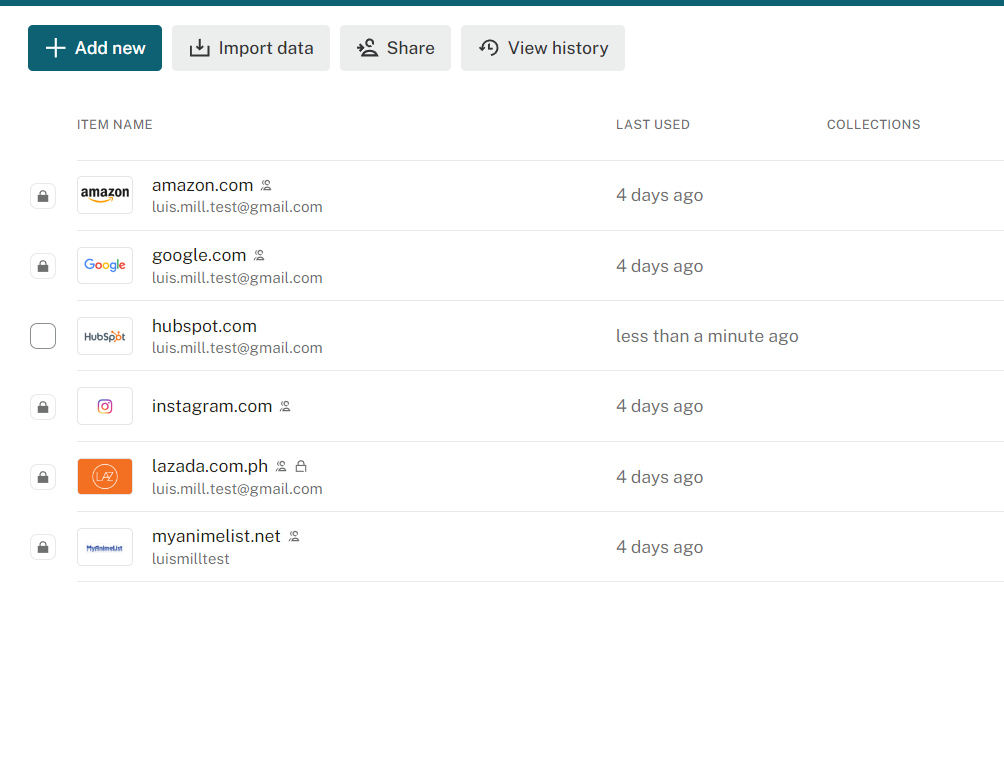
At this point, you’ve officially saved your first password with Dashlane!
Dashlane frequently asked questions (FAQs)
Is Dashlane no longer free?
Dashlane still has a free plan, however, it’s much more limited now than it was compared to years prior. Pre-November 2023, Dashlane’s free version allowed for an unlimited number of passwords to be stored in user vaults.
Now, Dashlane Free restricts storable passwords to a maximum of 25 logins. In addition, Dashlane Free accounts that contain more than 25 logins will be changed to read-only mode. In this mode, users are only able to view their saved items and cannot edit, copy, or share them.
According to Dashlane, you can exit read-only mode by removing logins and keeping items at a max of 25, or by upgrading to one of their paid plans.
For an in-depth guide on Dashlane’s free plan, check out our Dashlane Free vs Premium feature.
What operating systems does Dashlane support?
Dashlane mainly supports web browsers, specifically Chrome, Firefox, Microsoft Edge, or any Chromium browser. Any desktop or computer operating system running these browsers will be able to run Dashlane’s web app and browser extension. For Safari users, you will need to have at least macOS 14.0 (Sonoma) or later for Dashlane to run.
Dashlane also has dedicated mobile applications for both Android (Android 10.0 or later) and iOS (iOS 17 or iPadOS 17 or later).
If you’re curious, Dashlane used to have desktop applications but these were sunsetted back in January 2022 in favor of their web applications.
How do I move passwords to Dashlane?
Dashlane has an “Import data” button right at the top of its main web interface. This allows users to transfer their passwords and other logins into Dashlane.
Once you select this button, Dashlane gives you the option to import data and passwords from your source of choice. Here you can choose popular password managers like 1Password, Bitwarden, KeePass, LastPass, Keeper, and others. You also have the option to select and import a CSV file.
Does Dashlane sync between devices?
Yes, Dashlane automatically syncs your passwords and data across your devices. Syncing typically occurs when you make any changes to your vault items on either the Dashlane web application or mobile app.
If you find your vault items aren’t immediately syncing, there is a workaround. In your Dashlane web app, navigate to Settings. From there, select the “Sync now” button. This manually syncs your data between your devices.
For Android and iOS Dashlane users, this button isn’t present. However, you can simply close and reopen your mobile Dashlane app for your data to sync properly.
What we think of Dashlane
In our full review, Dashlane received a rating of 4.6 out of 5 stars. In that review, I highlighted Dashlane’s refined user interface, zero-knowledge encryption, and cost-effective Friends and Family plan as some of its standout features.
It also has strong extra security capabilities such as a dark web monitor, a password health dashboard, and a password history feature, alongside the usual password storage and capture. While its free version is very limited, it’s a quality pick for users looking to have an intuitive and easy-to-use password manager experience.
If you want to learn more, read our full Dashlane Review.
This article was originally published in November 2023. It was updated by the same author in January 2025.